AI Tools
Google Flow Prompt Guide: Turn a Still Image Into a Controlled Video Shot
Turn a still image into a focused Google Flow shot with practical prompts for camera movement, subject motion, and consistent visual details.
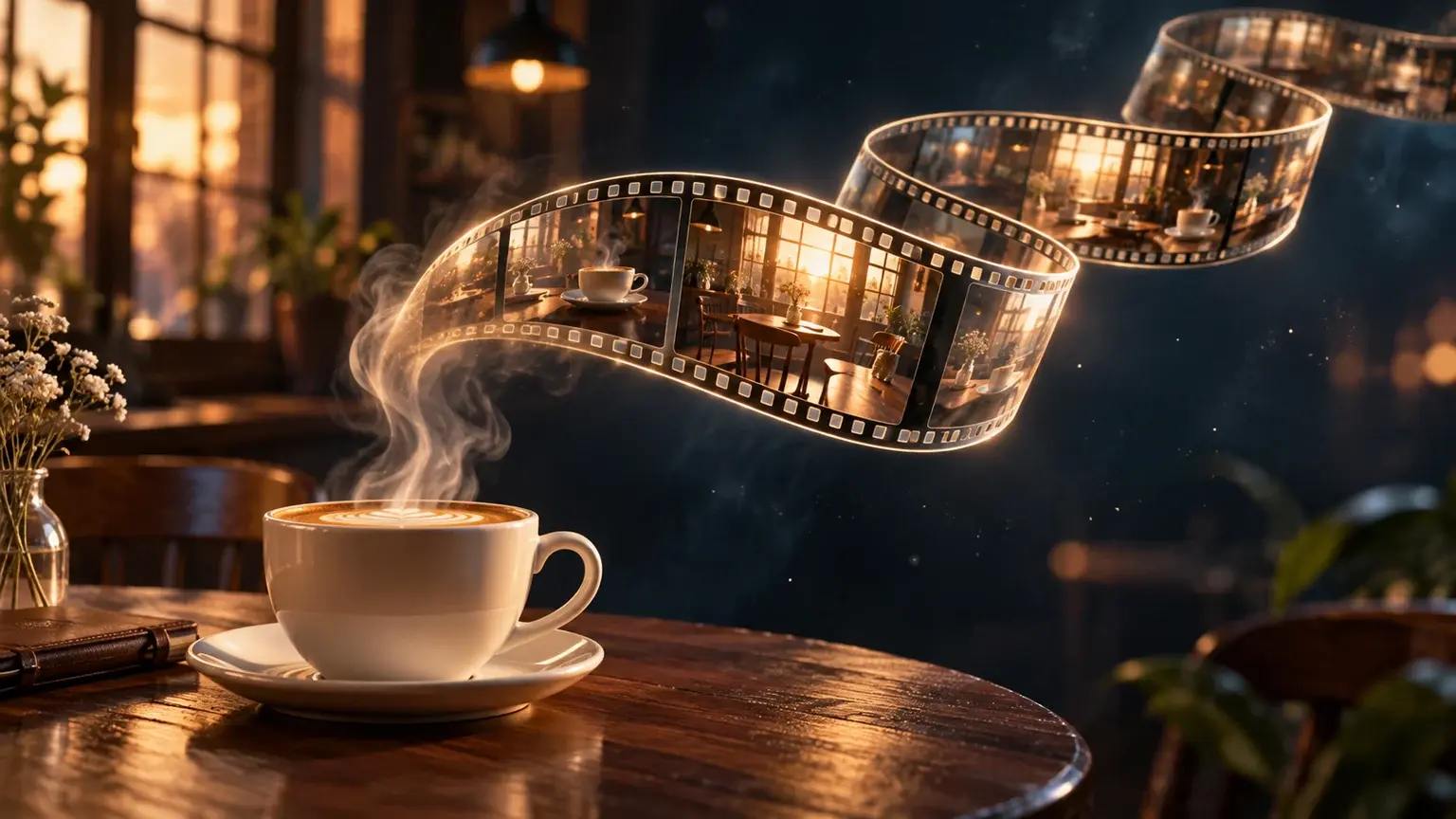
A useful Google Flow prompt tells the model what should happen after the still image comes to life: what moves, how the camera behaves, and which details need to stay consistent. Start with one shot you can describe and judge clearly.
This guide uses a café image as a worked example, then adapts the method to portraits and product shots. The prompts are editorial starting points, not a benchmark or a promise of identical results. The accompanying images are original AI-generated illustrations, not screenshots or tested Google Flow outputs.
Choose a frame-led workflow
Google distinguishes frames, which specify a clip’s opening or ending image, from ingredients, which supply visual references. For an existing photo whose opening composition matters, start with a start frame. For reusable subject references in a newly composed shot, consider ingredients. See Google’s guide to frames and visual references.
For this tutorial, choose the simpler brief: begin with the supplied café composition and introduce a small amount of movement. Save transitions between substantially different scenes for a separate experiment.
Before you begin, check access for your account and location. Google recommends a desktop Chromium-based browser for the best experience; its Flow getting-started guide explains eligibility and access.
Prepare a still image with a clear job
Pick a source image that already contains the subject, setting, and framing you want to keep. For your first attempt, choose a scene with one obvious subject and few competing details. Treat this as a way to make your review manageable: you should be able to point to the intended change without explaining several simultaneous actions.
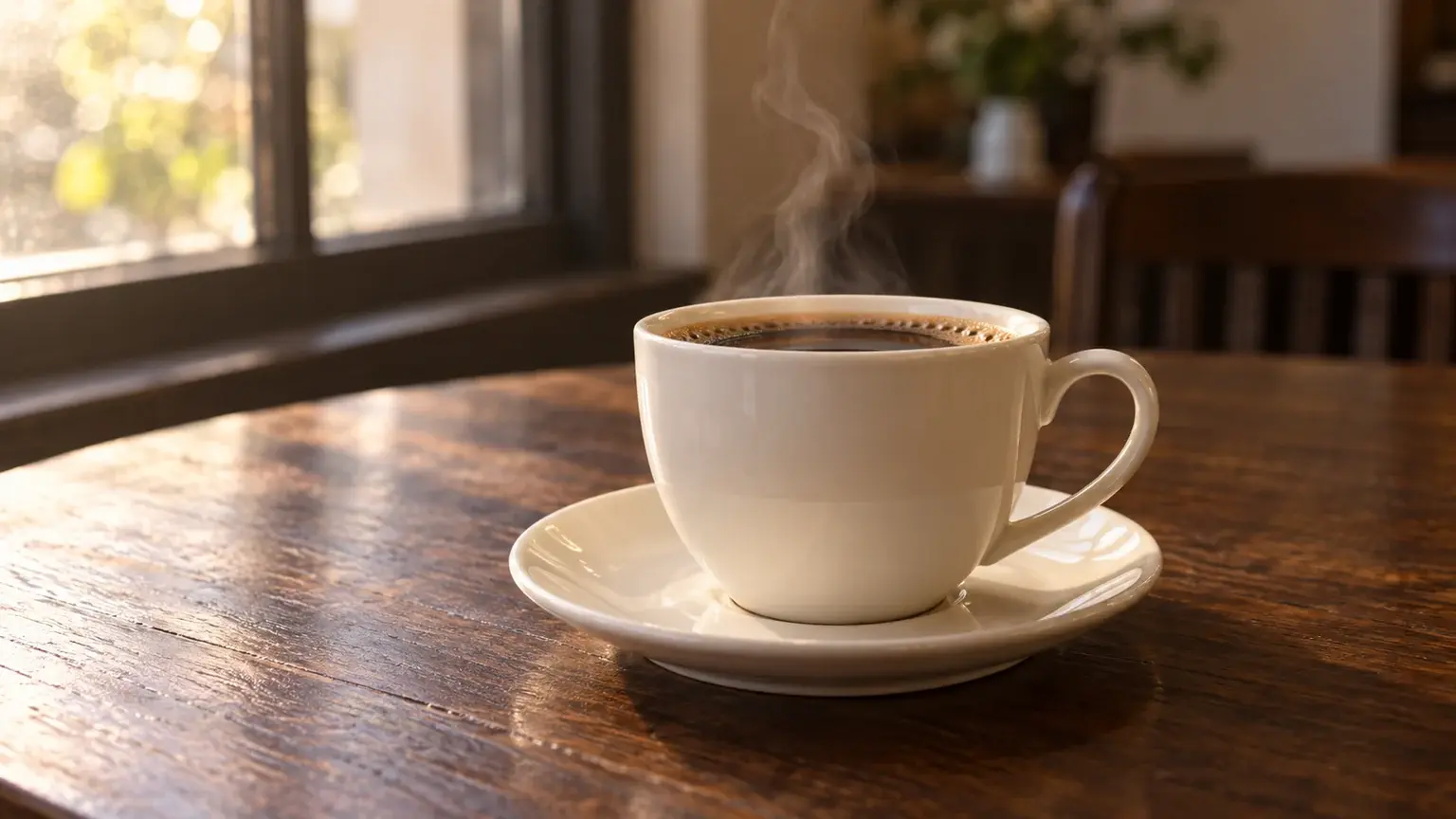
- For the café example: use a cup and saucer with clear edges, a readable handle, and room around the subject.
- For a portrait: select an expression you would be happy to retain through most of the shot.
- For a product: decide which details must pass inspection, such as the cap, silhouette, label, and reflections.
Resolve distracting still-image problems before designing the motion. If your café photo needs a clearer starting treatment, use the natural-light food editing prompt as a separate preparation exercise.
Set up the shot in Google Flow
In a project, open the model selector, choose Video, then Frames, and add your image as the start frame. Write the action in the prompt box, choose the available video preferences, and generate. An end frame is optional when you want a specific finishing composition. These steps follow Google’s frame-generation instructions.
Check the active model before confirming. Supported features and lengths differ across models; consult Google’s model and feature compatibility guide. Select the aspect ratio for your intended placement and check the displayed credit cost. Use a landscape frame for the examples below.
Write the prompt as five decisions
Use the following editorial checklist to turn a vague instruction into an assessable shot brief. These are planning categories, not special Flow commands.
| Decision | Question to answer | Café example |
|---|---|---|
| Subject action | What is the main visible change? | A thin wisp of steam rises from the coffee. |
| Camera movement | Does the camera move, and in which direction? | A gentle forward push toward the cup. |
| Environmental motion | What else should move? | Nothing beyond the steam. |
| Continuity | Which details must remain consistent? | Cup shape, handle position, saucer, and window-light direction. |
| Ending | What should the viewer see at the finish? | A slightly tighter view with the entire cup still visible. |
Read the brief aloud. If it asks for a fixed viewpoint and an orbit, choose one. If the subject must stay still, remove instructions that also ask it to turn. Google advises making prompts complementary to the supplied visual inputs; see its Flow prompting best practices.
Worked example: a café steam shot
“Make this cinematic” leaves you with few concrete criteria for judging the result. Instead, specify the movement and the details you intend to check.
Use the uploaded image as the starting frame. A thin, delicate wisp of steam rises from the coffee and disperses above the cup. The camera makes a very slow, gentle forward push, ending slightly closer while keeping the entire cup and saucer in view. Keep the cup stationary on the table. Preserve the cup’s shape, handle position, saucer, tabletop texture, and warm window-light direction. The background remains quiet and still. One continuous shot.
After generating, make three decisions: whether the push is subtle enough, whether the steam is appropriately restrained, and whether the cup remains acceptable throughout. Do not accept a beautiful ending if the handle changes halfway through your intended edit.
If the push overwhelms the composition, generate a fresh version from the same source image with this narrower brief:
Use the uploaded image as the starting frame. Keep the camera fixed on the cup and saucer. A single thin wisp of steam rises gently from the coffee and fades. Keep the cup, handle, saucer, tabletop, framing, and window light consistent. The cup and background remain stationary. One quiet, continuous shot.
This revision removes the camera move so that you can evaluate the steam instruction on its own. For another brief to adapt, try the café steam push-in prompt.
Adapt the method to a portrait
Set a narrow acceptance standard before generating: the person should remain recognizable to you, the expression should stay close to the starting image, and the motion should suit the intended use. For this exercise, leave speaking, hand gestures, and large turns out of the brief.
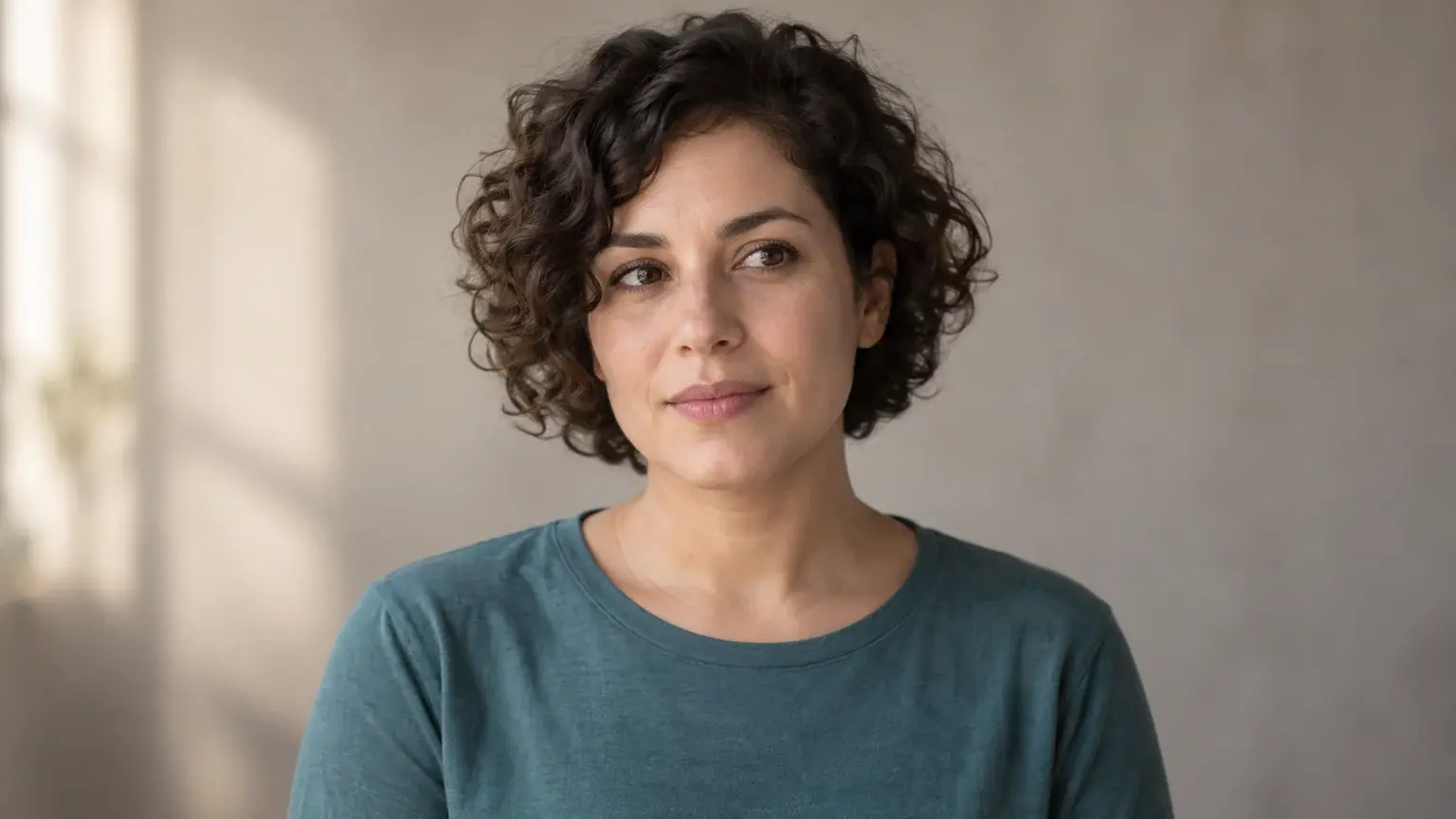
Use the uploaded portrait as the starting frame. The person holds a relaxed pose, blinks once naturally, and develops a very slight smile. Keep the camera fixed. Preserve the person’s facial proportions, hairstyle, clothing, and background. Keep the lighting steady and the shoulders relaxed. End with the gaze and head position close to the starting image. One continuous portrait shot.
Review the blink, eyes, mouth, and jaw separately. If the smile introduces an unwanted change, remove the smile instruction in the next version and judge the blink alone. If likeness is unacceptable, reject that take instead of adding more actions.
The gentle portrait blink-and-smile prompt offers a related starting point. For several people in one frame, use the separate group-photo motion prompt and define which person should move first.
Adapt the method to a product shot
For a product, decide whether your goal is to reveal another side of the object or add life to the existing view. The example below chooses the existing view. Its success criteria are a restrained moving highlight and a consistent bottle silhouette.
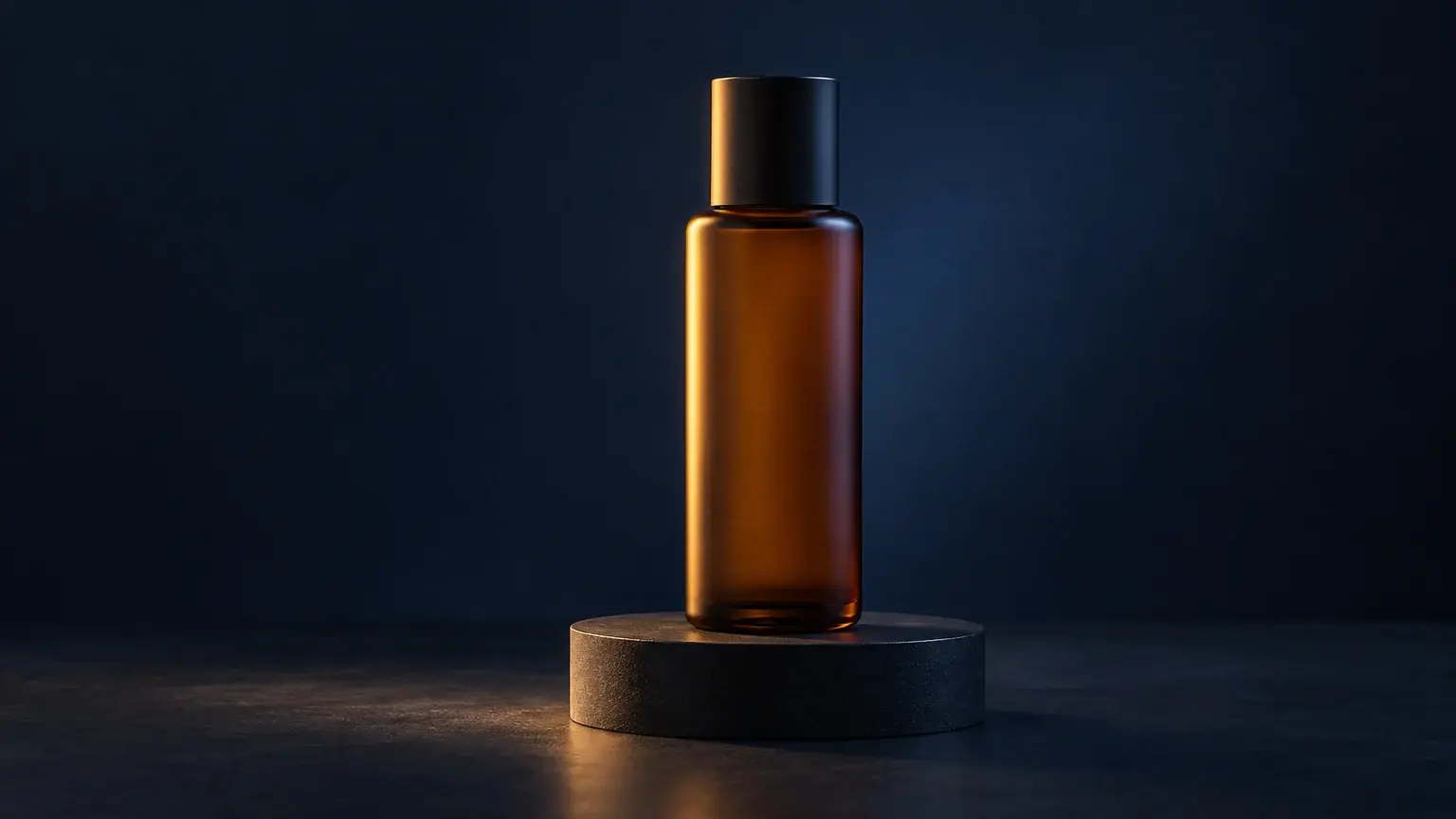
Use the uploaded product image as the starting frame. Keep the bottle and display plinth stationary. The camera remains fixed in the existing three-quarter view. A soft studio highlight moves slowly across the bottle from left to right. Preserve the bottle’s silhouette, cap geometry, amber color, and position on the plinth. Maintain the dark background and restrained studio lighting. End on the original composition with a settled highlight. One continuous shot.
If a turntable reveal is the actual goal, make that a separate brief with a chosen rotation direction and ending view. The product turntable reveal prompt is a useful starting point. For a product carrying text, inspect the lettering frame by frame before accepting the clip.
Troubleshoot by changing one decision
Use this table as a revision plan when you encounter a problem. It describes editorial experiments, not guaranteed fixes or a diagnosis of the model’s internal behavior.
| What you observe | What to inspect in the brief | Next experiment |
|---|---|---|
| The camera moves too far | Multiple camera directions or an unclear ending crop. | Request a fixed camera; reintroduce a small push only after reviewing that take. |
| The subject changes shape | A turn or perspective change you do not actually need. | Keep the existing viewpoint and reduce the requested subject movement. |
| New objects enter the scene | Added scene descriptions that are unnecessary for the shot. | Limit the brief to the visible subject and the intended motion. |
| A face changes during the expression | A smile, head turn, and blink requested together. | Keep only one small action and review facial proportions again. |
| The ending feels abrupt | An action without a chosen final state. | Specify the finishing pose or composition, then assess whether the take reaches it. |
| Frames or another control are unavailable | The selected model and feature combination. | Check the linked Google compatibility guide and select a supported combination. |
Keep the source image, aspect ratio, model, and other available settings constant while comparing a prompt revision. Record the changed sentence and your reason for preferring one take. Treat a better take as a useful selection, not proof that a phrase will work identically every time.
Review, assemble, and choose the final take
Watch once for the overall impression, then pause near the beginning, middle, and end. Inspect the subject’s edges, facial features or lettering, background stability, and final composition. Also listen to any generated audio before choosing the clip.
When you have acceptable takes, Flow’s Scenebuilder can arrange and trim clips, preview the sequence, and download a scene. You can also save a video frame for use in a later generation. Follow Google’s scene-building and frame-saving instructions.
For a small café sequence, plan three separate shots: a wider establishing view, the restrained steam shot, and a closer detail. Give each shot one job. Check the cup, table, and lighting across the sequence before deciding that the shots belong together.
For your next experiment, choose one scenario from the image-to-video motion prompt collection, define its main movement, and write down the details you will inspect before generating. That gives you a concrete brief and a clear reason to accept or reject the result.


