AI Tools
How to Get Rid of AI Overview in Google Search: Desktop and Mobile Guide
Learn how to avoid Google AI Overviews with the Web filter, desktop search shortcuts, and mobile workarounds, plus what Search Labs actually changes.
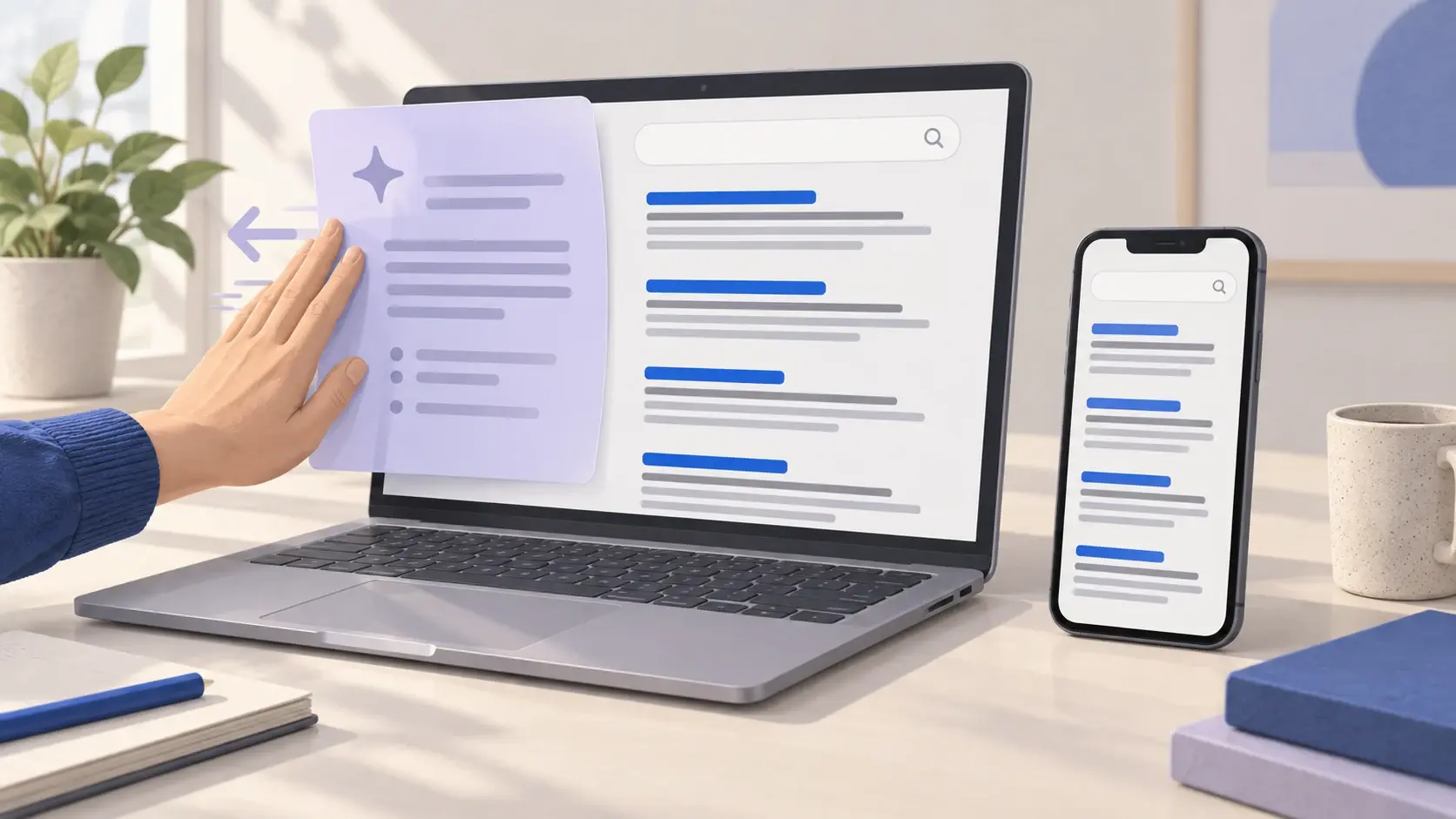
If you are searching for how to get rid of AI Overview, start with Google's Web filter. Run your search, then choose Web from the results filters. Google says AI Overviews cannot be switched off as a core Search feature, but Web displays text-based website links without them. See Google's explanation of AI Overviews and the Web filter.
For occasional searches, that extra selection may be enough. For daily use, a browser search shortcut can make the workflow more convenient. An extension is another option if your priority is hiding the overview inside the usual results page.
This guide covers desktop Chrome, Android, iPhone, and the checks to make when a workaround appears to stop working. Product documentation was reviewed on September 18, 2026. The browser workarounds below are documented methods, not claims of hands-on testing on every device.
Choose the right method first
Think about where you actually start a search: a browser address bar, Google's website, or a phone app. Choose a method for that entry point. A browser setting is not evidence that every search surface on your phone has changed.
| Your goal | Start here | Main trade-off |
|---|---|---|
| Read website links for one search | Select Web after searching | Check the selected filter on the next search |
| Use Web results from desktop Chrome's address bar | Create a Google Web search shortcut | The shortcut controls searches sent through it |
| Hide the overview within standard results | Consider an overview-hiding extension | Requires trusting and maintaining an extension |
| Avoid summaries on a phone with minimal setup | Use the results-page Web filter | Its position can vary |
| Try a mobile Chrome default-search workaround | Use a discoverable Google Web provider | Availability depends on the browser's interface |
The setup instructions and supporting documentation for each option follow. If you are unsure, try the no-install filter before changing defaults.
Use the Web filter on desktop, Android, or iPhone
Google places search filters below the search box. Their order is dynamic, so Web may not appear in the same position for every query. Google's guide to refining searches explains the filter behavior.
- Search for your topic in Google.
- Look at the results filters below the search box.
- Select Web. If it is not visible, inspect the additional filters available in your layout, including More if shown.
- Confirm that Web is selected before opening a result.
On Android or iPhone, start in your mobile browser if you cannot locate the filter in an app. Look across the filter row rather than looking for an AI setting in the phone's system settings. On a desktop, use the same results-page approach in your preferred browser.
Try this with a query that just produced an overview. Keep the words unchanged while switching the view. That gives you a useful comparison: you are checking the effect of the filter, rather than comparing two unrelated searches.
For a research session, make checking the selected view part of your routine. Do not assume that opening a new tab, using a different search box, or starting from a shortcut preserves the previous selection.
Make Google Web a desktop Chrome search option
Chrome supports custom site-search entries. Google's search-engine and shortcut instructions describe how to add one and make it the default.
- Open Chrome's menu and select Settings.
- Open Search engine, then Manage search engines and site search.
- In Site search, choose Add.
- Enter the values below and save the entry.
- Open its menu and choose Make default if available.
| Field | Value |
|---|---|
| Name | Google Web |
| Shortcut | @web |
| URL with query placeholder | https://www.google.com/search?q=%s&udm=14 |
The %s marks where Chrome inserts your search words. The Web-view parameter is documented by the independent TenBlueLinks project; treat it as a workaround, not a permanent Google opt-out contract.
Open a new tab and test from the address bar. To undo the default, return to Search engine settings and choose your previous provider. Work or school management can restrict changes; Google's Chrome documentation notes that administrators may control search engines.
Check the route, not just the name
A label such as Google Web is only a name you assigned. For your acceptance check, ask: did the search open the intended results view? If it did not, inspect the saved address for a missing character, an accidental space, or a changed parameter.
Compare two entry points deliberately: one search from the address bar and another from Google's website. Record which route you want to use every day. This prevents an apparently successful setup from becoming confusing when you later start somewhere else.
Avoid changing several search-related settings at once. Add the entry, test it, and only then decide whether to make it your default. Keeping those steps separate makes undoing a mistake easier.
Try a mobile Chrome shortcut on Android or iPhone
The TenBlueLinks mobile instructions describe this optional route for Chrome on both platforms:
- Visit the project's page in Chrome.
- Open a new tab and perform a Google search.
- Open Chrome's menu, then Settings and Search engine.
- If Google Web appears under Recently visited, select it.
The project says its provider sends searches directly to Google. This is third-party documentation, and the option may not appear in your browser version. If it is missing, use the Web filter instead. These are Chrome instructions; do not follow them as Safari settings.
Before adopting this as your daily setup, try a fresh search from the same place you normally type. If your habit is tapping a Google app icon or a home-screen search widget, include that in your check. Verify each entry point individually instead of treating one successful Chrome test as a phone-wide result.
For iPhone users who prefer Safari, the simpler recommendation in this guide is the results-page Web filter. Switching browsers solely for a workaround is a personal trade-off: consider whether avoiding an extra tap is worth changing your normal browsing routine.
Use an extension to hide the overview
The developer of Hide Google AI Overviews describes an extension that removes the overview from displayed search results. Its listing links to the project's source code. That establishes the stated purpose, not an independent guarantee of reliability or privacy.
Consider this option if you prefer keeping your usual results layout. Before installing, inspect the developer, permissions, recent maintenance, and reported problems. Do not choose solely by the extension's name or star rating.
- Open the official store listing on desktop Chrome.
- Review the requested permissions before approving installation.
- Repeat a search that previously showed an overview.
- Check that the results you need are still accessible.
Google's extension management guide explains installation, site-access controls, disabling, and removal. It also clarifies that the phone's Add to Desktop action installs for a computer; it is not an installation into mobile Chrome.
Make the trial easy to reverse. Start with one extension, note what it changes, and disable it if the page behaves unexpectedly. Avoid stacking several overview blockers while troubleshooting: that makes it harder to identify which change produced the result.
Use the same query and browser profile for your before-and-after check. If there was no overview before installation, a clean page afterward does not demonstrate that the extension worked. A useful test needs something observable to remove.
Why Search Labs is not the main fix
Google's current documentation calls the experimental setting AI in Search. Its instructions are to open Labs, choose Manage, and turn that setting off. This controls the experiment; the same page separately identifies AI Overviews as a core feature that cannot be turned off. See Google's Labs and AI Overview guidance.
If an older tutorial tells you to find AI Overviews and more, do not keep searching for an exact label that may have changed. Read the current setting description. Judge the outcome on the results page rather than assuming that an experiment toggle is a universal removal switch.
Common mistakes and troubleshooting
The overview came back after the shortcut worked
First, retrace the search. Did you use the same browser profile and address bar, or switch to an app, widget, bookmark, or website search field? Retest the exact route you configured before changing anything else. This is a diagnosis step, not proof that any particular app is at fault.
The Web option is hard to find
Inspect the available filter choices for that query. Google documents that filter order changes; do not depend on a fixed screen position. If you are stuck in an unfamiliar app view, retry the search in a browser. Keep the search words unchanged during the comparison.
An extension stopped hiding the panel
Check whether it is enabled and allowed on the relevant site. Chrome exposes these controls in Manage extensions, as described in its extension settings documentation. Then inspect the developer's current support information. Use the Web filter while investigating instead of granting broader permissions without a clear reason.
A guide says to add “-ai” to every query
Google documents a minus sign as a way to exclude a word, not as an AI Overview setting. Adding it changes the search request. See the official search-operator descriptions. Do not confuse a different set of results with a lasting feature preference.
You are considering clearing cookies or reinstalling
Before resetting anything, identify what a proposed fix is meant to change. Start with the selected results view and the saved search entry. A broad reset is a poor first troubleshooting step when the immediate question is simply which route your search used.
Build a source-first search routine
Removing the summary is only the beginning if your goal is to read original material. For each important result, record the author or organization, publication date, and the specific claim you want to check. Open the underlying document before saving a quotation or relying on a product instruction.
Separate discovery from evaluation. First collect a few promising pages; then compare whether they actually address the same question. A tutorial for desktop Chrome does not settle an iPhone Safari problem, and an old screenshot should not outweigh the current product documentation.
For a longer project, our research prompts can help you organize questions and evidence after you collect sources. Keep your own links and notes alongside any generated synthesis so you can retrace the reasoning.
Frequently asked questions
Can I permanently disable AI Overviews in my Google account?
Google currently provides no universal off switch for this core feature. Use the Web view or a browser workaround for the searches you want to change. This is the distinction made in Google's official explanation.
Which option should I try without installing anything?
Start with the Web filter. If repeated selection becomes inconvenient, try the desktop search shortcut. Make one change at a time so you know which setup suits your routine.
Does hiding an overview mean I have opted out of AI data use?
Do not treat a display change as proof of a privacy or data-use change. This guide addresses what you see in search results. Review the applicable product privacy controls separately if that is your objective.
How can I tell whether my setup works?
Choose a query that showed an overview, repeat it through your configured route, and inspect the selected view. Then try a second query and a new tab. Keep a note of the browser and entry point where the setup succeeded.
What should I do if I want the original setup back?
Reverse the specific change you made: restore your earlier default search provider or disable the installed extension. Avoid a full browser reset when a single setting is enough.


